Committing Changes to an Image in Docker
Learn how to use docker container commit to save a modified container's changes as a new, reusable Docker image.
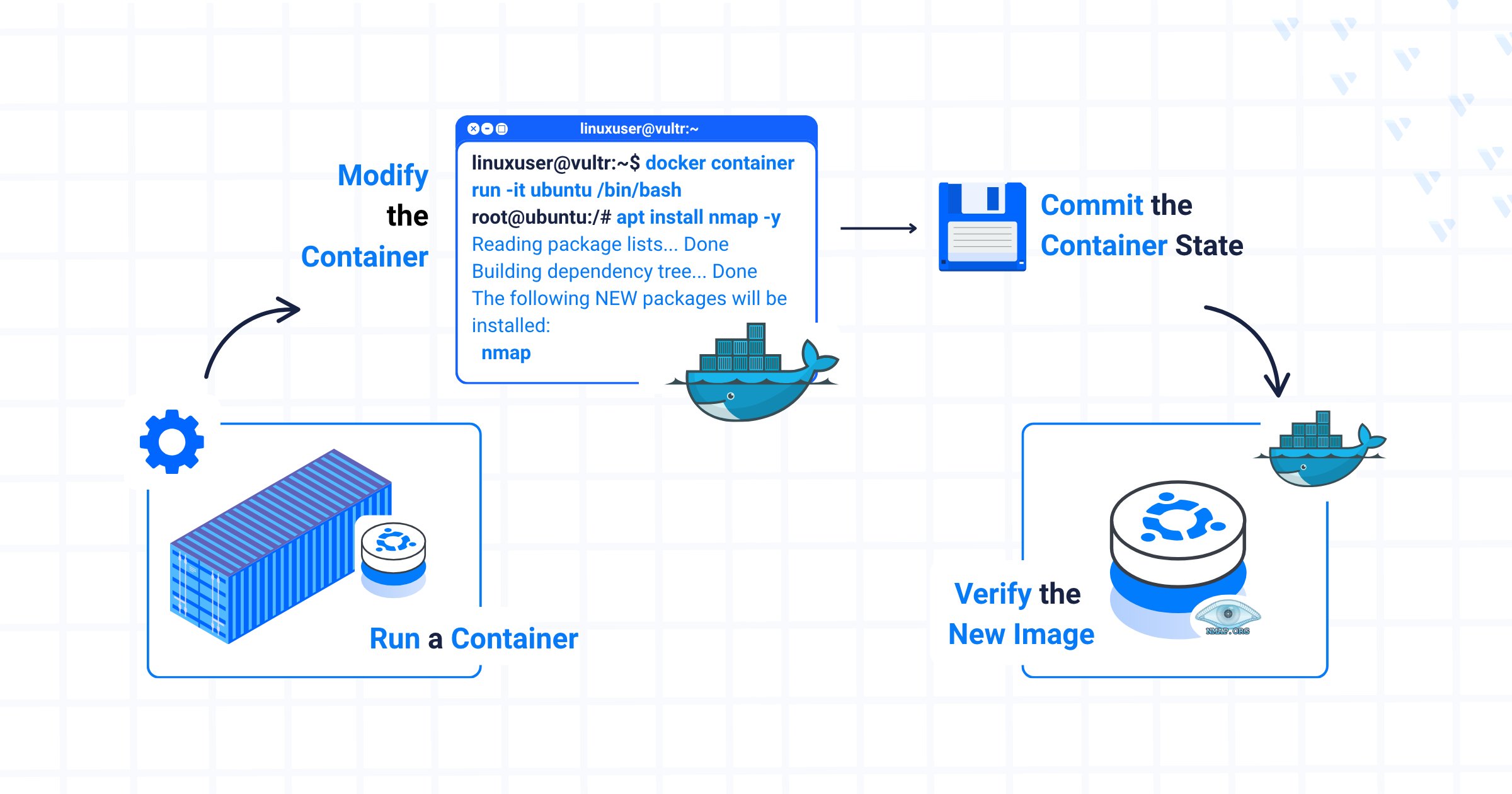
Docker is an open-source platform for deploying, scaling, and managing applications in lightweight, isolated containers. Changes made to a running container — such as installing packages or modifying files — are temporary and lost when the container is removed or recreated, unless you commit them or use volumes to persist data. This guide explains how to commit changes from a running or stopped container into a new Docker image using docker container commit, including the available flags and when to use this approach instead of a Dockerfile. By the end, you'll have a custom Docker image built from a modified container, ready to reuse, share, or push to a registry, following Docker image management practices documented in Vultr Docs.
docker container commit vs docker image push
| Feature | docker container commit |
docker image push |
|---|---|---|
| Purpose | Creates a new image from a running or stopped container | Uploads a local image to a remote container registry |
| Usage Context | Used after modifying a container to save its state | Used to share images across systems or with other users |
| Source | Running or exited container | Existing Docker image |
| Target | Local Docker image store | Remote registry (for example, Docker Hub or another container registry) |
| Persistence | Saves container changes locally as a new image | Distributes images for use on other systems |
| Typical Workflow | Development, debugging, or snapshotting container state | Deployment and versioning across environments |
Quick Reference
Use the following commands as a quick reference to commit changes from a running container, create a new image, and optionally push it to a container registry:
docker container ls
docker container commit -m "Save config" <container-id> <image-name>:<tag>
docker image ls
docker image tag <image-name>:<tag> <username>/<image-name>:<tag>
docker image push <your-registry>/<image-name>:<tag>
Command Usage
The docker container commit command creates a new image from the current state of a running or exited container. Use it after making changes to a container, such as installing packages or configuring software, to save those modifications as a reusable Docker image.
docker container commit [OPTIONS] CONTAINER [REPOSITORY[:TAG]]
Command Options
| Option | Description |
|---|---|
-m, --message |
Adds a commit message describing the changes made to the container |
-a, --author |
Sets the author name and email for the new image (for example, "Alice <alice@example.com>") |
-p, --pause |
Pauses the container during the commit process (enabled by default) |
-c, --change |
Applies Dockerfile instructions such as CMD, ENV, or EXPOSE to the new image |
docker container commit captures internal container changes but excludes data stored in mounted volumes or external storage.
Commit Changes to a New Docker Image
1. Run a container from a base image with an interactive terminal session:
docker container run -it ubuntu /bin/bash
This pulls the latest Ubuntu image from Docker Hub if it isn't already available locally, and opens a Bash shell as the root user.
2. Inside the container, make your changes — for example, update the package list and install Nmap:
# apt update && apt install nmap -y
3. Exit the container:
# exit
The container stops running, but Docker retains its state so you can commit the changes.
4. List all containers to find the one you just modified:
docker container ls -a
Output:
CONTAINER ID   IMAGE     COMMAND       CREATED              STATUS                      PORTS     NAMES
fbd1f006ee67   ubuntu    "/bin/bash"   About a minute ago   Exited (0) 17 seconds ago             gracious_dijkstra
Copy the container ID from the list — you'll use it in the next step.
5. Commit the container as a new image:
docker container commit -m "Installed Nmap" fbd1f006ee67 ubuntu-with-nmap:v1
Replace fbd1f006ee67 with your container ID, and ubuntu-with-nmap:v1 with your desired image name and tag. Docker returns the new image ID if the command runs without errors:
sha256:4ab8382015ea03a117a76a38dab41d6e291ecaad3b570d018d336dc5c81b9ac7
6. Confirm the image was created:
docker image ls
Output:
REPOSITORY         TAG       IMAGE ID       CREATED          SIZE
ubuntu-with-nmap   v1        4ab8382015ea   31 seconds ago   158MB
ubuntu             latest    a0e45e2ce6e6   13 days ago      78.1MB
When to Commit Changes
Use docker container commit to capture changes made inside a running container and save them as a new image. This is useful for:
- Installing tools or packages: Install additional utilities or custom scripts inside a container, then save the configured environment for later use or deployment
- Applying configuration changes: Modify system settings or environment variables, then commit those changes to preserve the setup
- Capturing a debugging or testing state: Troubleshoot or test inside a container, then commit the exact state to replicate the environment elsewhere or share it with your team
- Creating a snapshot before changes: Save a point-in-time version of a container before applying further updates, so you can roll back if needed
docker container commit is useful for quick snapshots and small-scale workflows, but it isn't ideal for production environments. For consistent, repeatable image builds in team-based or production deployments, use Dockerfiles with version control — they offer better visibility, traceability, and control over image configuration.
Next Steps
- Push your new image to a container registry with
docker image taganddocker image push - Convert a frequently-committed workflow into a Dockerfile for repeatable, version-controlled builds
- Use
docker historyto inspect the layers of your newly committed image - Clean up unused containers and images with
docker system pruneonce you've confirmed the new image works
For the full guide with additional tips, visit the original article on Vultr Docs.
About the authors
- A Developer Advocate with a focus on improving the developer experience through clear communication, technical enablement, and community engagement.
- DevOps Engineer with experience in Kubernetes, automation, cloud infrastructure, and observability. I work in Developer Relations, contribute to technical documentation, and collaborate on engineering-focused projects.
Comments
Join the discussionNo comments yet. Be the first to comment.