Installing Docker on Ubuntu 24.04
Install Docker Engine and the Compose plugin on Ubuntu 24.04, manage the service, and run containers as a non-root user.
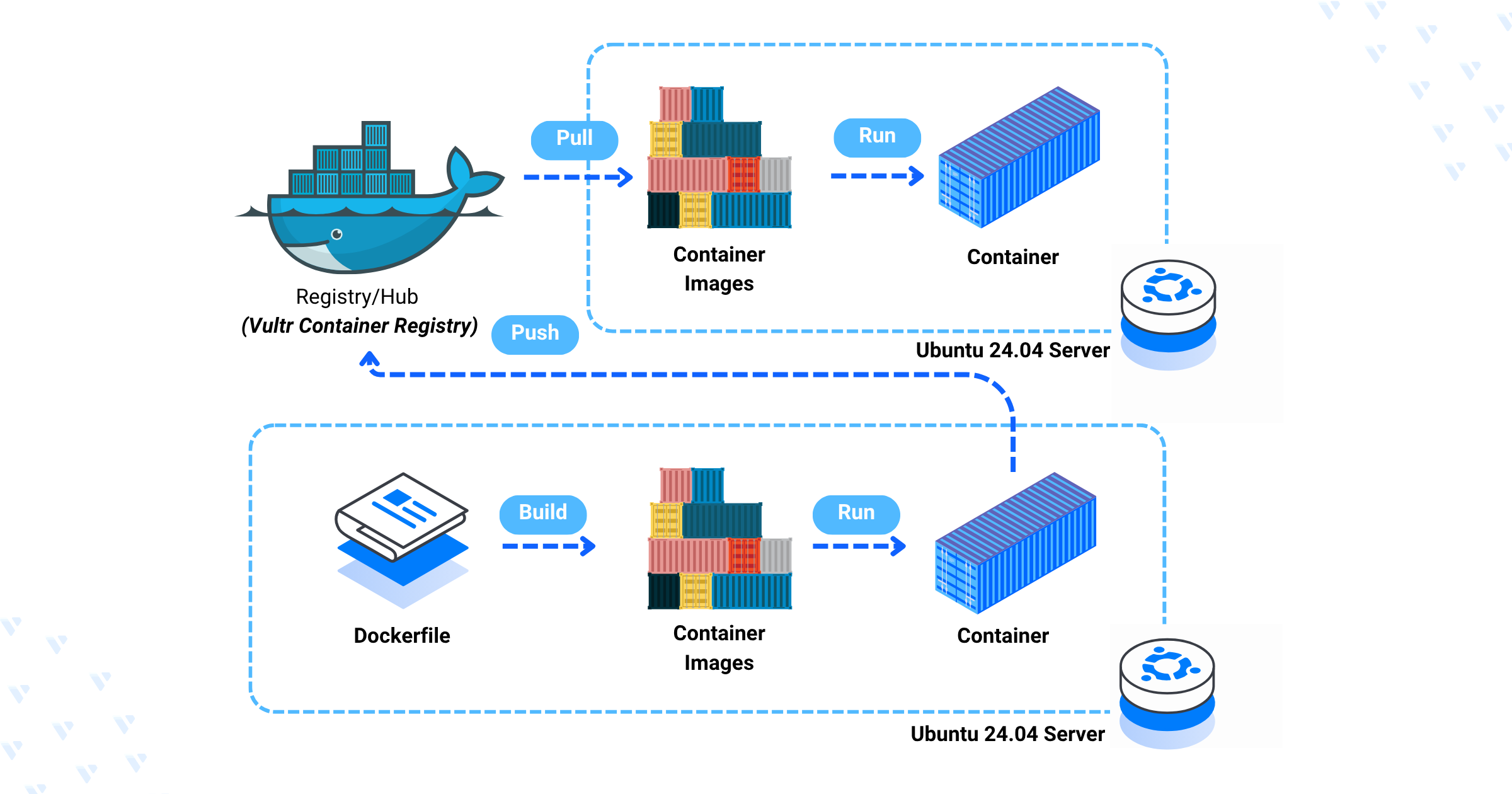
Docker is an open-source containerization platform that automates deploying, scaling, and managing applications in containers — lightweight, portable packages that bundle an application's code, runtime, libraries, and dependencies so it runs consistently anywhere. This guide walks through installing Docker Engine on an Ubuntu 24.04 server, managing the Docker systemd service, and running Docker commands as a non-root user. By the end, you'll have a fully working Docker installation ready to build and run containers, following containerization deployment practices documented in Vultr Docs.
Prerequisites
- Access to an Ubuntu 24.04 server as a non-root user with sudo privileges.
Note: Some GPU-enabled cloud instances running Ubuntu ship with Docker pre-installed. Installing Docker again on those servers can conflict with the NVIDIA Container Toolkit and affect GPU performance or container compatibility, so check first if Docker is already present.
Install Docker
1. Install the packages required to add the Docker repository:
sudo apt install ca-certificates curl -y
2. Create the keyrings directory that APT uses to store repository signing keys:
sudo install -m 0755 -d /etc/apt/keyrings
3. Download the Docker GPG key to the keyrings directory:
sudo curl -fsSL https://download.docker.com/linux/ubuntu/gpg -o /etc/apt/keyrings/docker.asc
4. Set read permissions on the key so APT can read it:
sudo chmod a+r /etc/apt/keyrings/docker.asc
5. Add the Docker repository to your APT sources:
echo "deb [arch=$(dpkg --print-architecture) signed-by=/etc/apt/keyrings/docker.asc] https://download.docker.com/linux/ubuntu $(. /etc/os-release && echo "$VERSION_CODENAME") stable" | sudo tee /etc/apt/sources.list.d/docker.list > /dev/null
6. Update the package index:
sudo apt update
7. Install Docker Engine and its plugins:
sudo apt install docker-ce docker-ce-cli containerd.io docker-buildx-plugin docker-compose-plugin -y
This installs Docker Engine with the following components:
docker-ce: The Docker Engine community edition package.docker-ce-cli: The Docker command-line interface (CLI).containerd.io: A container runtime that manages the lifecycle of Docker containers.docker-buildx-plugin: Extends Docker's image-building capabilities for multi-platform builds.docker-compose-plugin: Manages multi-container Docker applications defined in YAML files.
8. View the installed Docker version:
sudo docker --version
Output:
Docker version 29.6.1, build 8900f1d
Manage the Docker System Service
1. Enable the Docker service to start automatically at boot:
sudo systemctl enable docker
On Ubuntu, the package installer already enables this service, so the command confirms it is enabled.
2. View the Docker service status:
sudo systemctl status docker
Verify that the output shows active (running).
3. Stop Docker:
sudo systemctl stop docker
4. Restart the Docker service:
sudo systemctl restart docker
5. Add your non-root user to the docker group to run Docker CLI commands without sudo privileges. Replace linuxuser with your actual username:
sudo usermod -aG docker linuxuser
6. Enable the new user group changes in your active session:
newgrp docker
Next Steps
Docker Engine and the Compose plugin are installed and running, and your user can run Docker commands without sudo. From here you can:
Pull and run your first container images, or write a
docker-compose.ymlfor a multi-container appExplore Docker volumes and networks for persistent storage and service-to-service communication
Set up a container registry workflow for building and pushing your own images
Look into Docker Compose profiles or Swarm/Kubernetes if you need multi-host orchestration
For the full guide with additional tips, visit the original article on Vultr Docs.