Setting Up Firewall Policies using Iptables
Configure iptables chains and rules on a Linux server to allow, block, forward, log, and persist firewall policies.
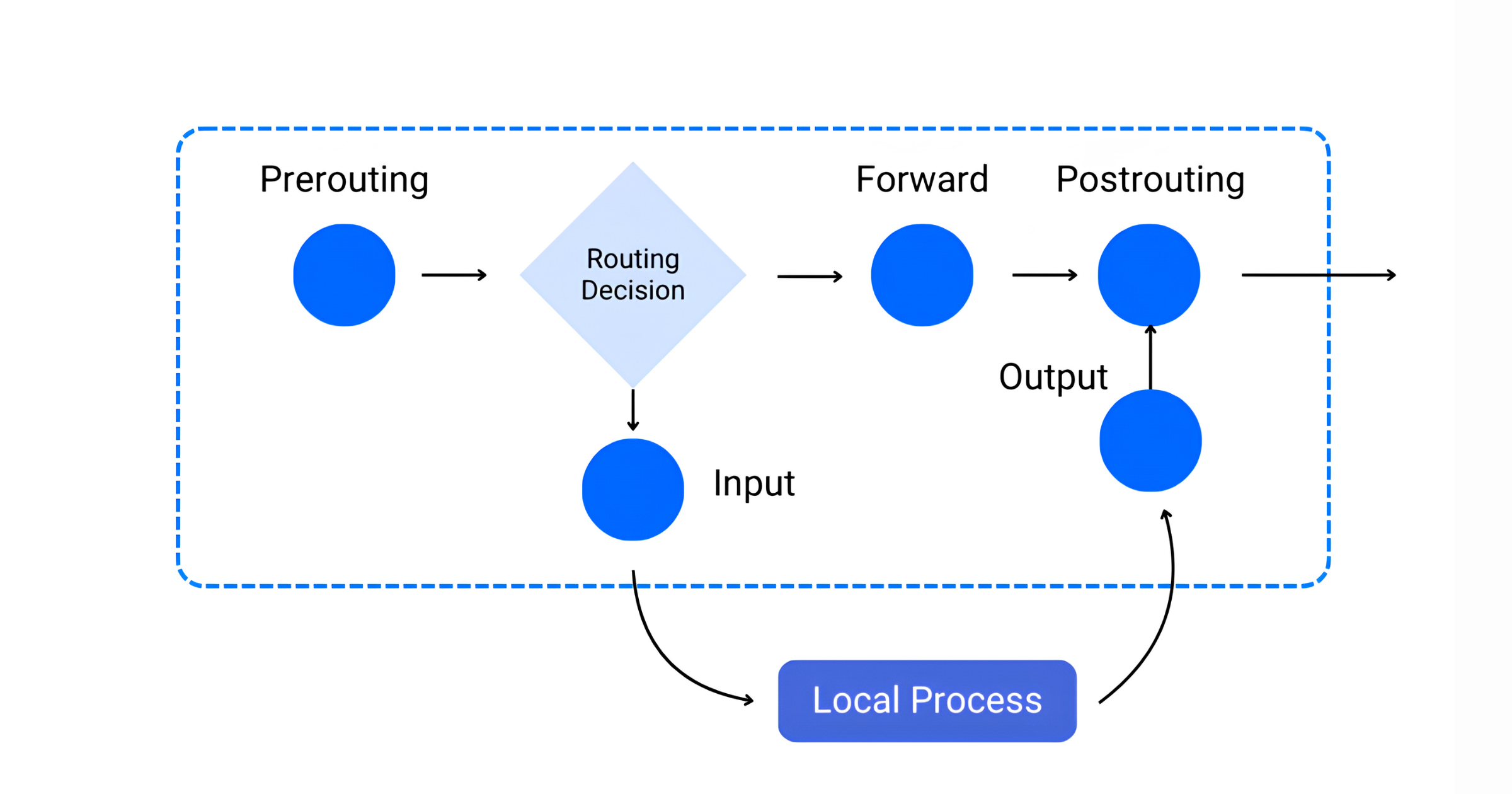
Iptables is a built-in command-line utility that performs packet filtering using the Linux kernel's Netfilter firewall framework. It controls incoming and outgoing network traffic by matching packets against chain rules, using a hierarchical format of tables, chains, and rules. This guide walks through setting up basic traffic filtering rules with target decisions to accept, drop, or reject network packets, plus NAT, logging, and persisting the rules across reboots. By the end, you'll have a working set of iptables firewall policies controlling inbound, outbound, and forwarded traffic on your server, following Linux firewall configuration practices documented in Vultr Docs.
Prerequisites
- A Linux server to use as the workstation.
- Access to the server using SSH as a non-root user with sudo privileges.
1. Set Up Firewall Policies
Iptables can filter network packets based on the target table and chain rules. Below are the main tables referenced by iptables.
- Filter Table: Contains packet filtering rules that either allow or deny packets to continue to the intended destination.
- NAT Table: Contains network packet modification rules that translate specific source addresses to your server network address for forwarding purposes.
- Raw Table: Enables access to network packets before the Linux kernel state tracking process.
- Security Table: Sets the internal host SELinux security context on network packets.
- Mangle Table: Contains rules that alter network packet headers and information such as the time to live (TTL) value.
To configure firewall policies, iptables uses the following built-in chain rules to filter network traffic.
INPUT: Captures incoming network packets on the server. Rules for incoming traffic.OUTPUT: Captures outgoing network packets.FORWARD: Forwards network packets routed within the server.
1. View all available iptables rules on the server:
sudo iptables -L
Output:
Chain INPUT (policy ACCEPT)
target     prot opt source               destination

Chain FORWARD (policy ACCEPT)
target     prot opt source               destination

Chain OUTPUT (policy ACCEPT)
target     prot opt source               destination
Follow the sections below to set up example firewall policies using iptables.
Allow Incoming Network Requests
1. Allow connection requests to the loopback interface 127.0.0.1:
sudo iptables -A INPUT -i lo -j ACCEPT
The above rule enables incoming connection requests to the localhost loopback interface. Within the command:
-A: Adds the rule to the filter table INPUT chain.-i lo: Applies the rule to the loopback (lo) interface.-j ACCEPT: Accepts matching network packets without any extra processing.
2. Allow already established and two-way network connections on the server:
sudo iptables -A OUTPUT -m conntrack --ctstate ESTABLISHED -j ACCEPT
The above rule accepts incoming network requests to already established connections and related connections in the form of two-way traffic.
3. Allow incoming connections to a specific network port. For example, allow incoming SSH connection requests to the server TCP port 22 from your public IP address subnet 192.0.2.0/30:
sudo iptables -A INPUT -p tcp -s 192.0.2.0/30 --dport 22 -m conntrack --ctstate NEW,ESTABLISHED -j ACCEPT
4. Allow incoming connections from one network interface to another. For example, allow network requests from the enp1s0 interface to the enp8s0 interface:
sudo iptables -A FORWARD -i enp1s0 -o enp8s0 -j ACCEPT
The above command forwards connection requests from one interface to another. However, additional static routing or NAT processing is required to route connections between hosts on the different networks.
Allow Outgoing Network Requests
1. Allow all outgoing network traffic from the server without any port or address restrictions:
sudo iptables -A OUTPUT -j ACCEPT
2. Allow outgoing network traffic from the loopback interface 127.0.0.1:
sudo iptables -A OUTPUT -o lo -j ACCEPT
3. Allow established outgoing network connections that match an already established incoming connection:
sudo iptables -A OUTPUT -m conntrack --ctstate ESTABLISHED -j ACCEPT
Block IP Addresses and Network Requests
1. Block IP network connections that originate from a specific IPv4 address. For example, 192.0.2.50:
sudo iptables -A INPUT -s 192.0.2.50 -j DROP
The above command blocks the network IP 192.0.2.50 from accessing any resources on the server.
2. Block network connections to a specific server interface. For example, block the IP 192.0.2.30 from accessing the internal enp8s0 interface in any way:
sudo iptables -A INPUT -i enp8s0 -s 192.0.2.30 -j DROP
3. Block IP access to specific network ports from a specific address range. For example, 10.10.10.0/24:
sudo iptables -A INPUT -p tcp -m multiport --dports 22,5901 -s 10.10.10.0/24 -j DROP
4. Block all incoming network requests that don't match any allowed rules:
sudo iptables -A INPUT -j DROP
Delete iptables Rules
Depending on your server's network requirements, you can delete specific iptables rules or modify existing entries to match your needs. For example, if a specific IP address no longer needs to be blocked, you can delete that rule.
1. View the available iptables rules and identify the target rule to delete:
sudo iptables -L
2. Append the -D option instead of -A on your original iptables rule to delete the target entry. For example, delete the IP blocking rule for the host address 192.0.2.50:
sudo iptables -D INPUT -s 192.0.2.50 -j DROP
2. Enable NAT and Port Forwarding
1. Enable NAT resolution through the public interface:
sudo iptables -t nat -A POSTROUTING -o eth0 -j MASQUERADE
The above NAT rule translates all network requests to the outbound interface's IP address — for example, hosts on an internal network route to external networks using that interface's IP. Within the above command:
-t nat: Applies the rule to the NAT table.-A POSTROUTING: Appends the rule to the POSTROUTING chain within the NAT table.-o eth0: Sets the target network interface to translate requests.-j MASQUERADE: Enables modification of the source IP address to match the external interface IP.
2. Forward incoming traffic on a given port to an internal interface. For example, forward traffic arriving on the enp8s0 interface:
sudo iptables -t filter -A PREROUTING -i enp8s0 -p tcp --dport 8080 -j ACCEPT
3. Forward traffic from a specific port to a destination IP address using dynamic NAT:
sudo iptables -t nat -A PREROUTING -i enp8s0 -p tcp --dport 8080 -j DNAT --to-destination 192.168.1.100
3. Log Iptables Rules
1. Log all dropped network packets for debugging purposes with the prompt Dropped iptables packets:
sudo iptables -A INPUT -j LOG --log-prefix "Dropped iptables packets:"
2. Log all unknown network packets with the prompt Unknown network packets::
sudo iptables -A INPUT -j LOG --log-prefix "Unknown network packets:"
3. View the system log file /var/log/syslog to verify the iptables log entries that match your rules:
sudo cat /var/log/syslog
4. Permanently Save Iptables Rules
1. Install the iptables-persistent package:
sudo apt install iptables-persistent
2. Save the iptables rules:
sudo netfilter-persistent save
Next Steps
- Review your full ruleset with
sudo iptables -L -v -nand remove any overly broad ACCEPT/DROP rules before relying on this in production. - Pair iptables with
fail2banfor automated blocking of repeated failed login attempts. - Consider
nftablesif you're on a newer distribution, since it's the long-term successor to iptables. - Document your chain order — rule order matters, since iptables evaluates rules top-down per chain.
For the full guide with additional tips, visit the original article on Vultr Docs.
About the authors
- A Developer Advocate with a focus on improving the developer experience through clear communication, technical enablement, and community engagement.
- DevOps Engineer with experience in Kubernetes, automation, cloud infrastructure, and observability. I work in Developer Relations, contribute to technical documentation, and collaborate on engineering-focused projects.
Comments
Join the discussionNo comments yet. Be the first to comment.