Using Volumes in Docker
Create, inspect, back up, and manage persistent Docker volumes from the CLI, a Dockerfile, and Docker Compose.
Docker volumes are a persistent storage mechanism that decouples your data from the container lifecycle, letting containers retain data across restarts and removals and allowing multiple containers to share a common data source. Unlike bind mounts, Docker manages volumes internally and stores them under /var/lib/docker/volumes/ on Linux systems. This guide shows how to create and inspect Docker volumes, interact with their contents, use them in Docker Compose workflows, back up and restore volume data, and reference volumes with the VOLUME instruction in a Dockerfile. By the end, you'll have a container with a named, persistent volume that you can inspect, back up, restore, and manage through both the CLI and Docker Compose, following Docker storage management practices documented in Vultr Docs.
Quick Reference
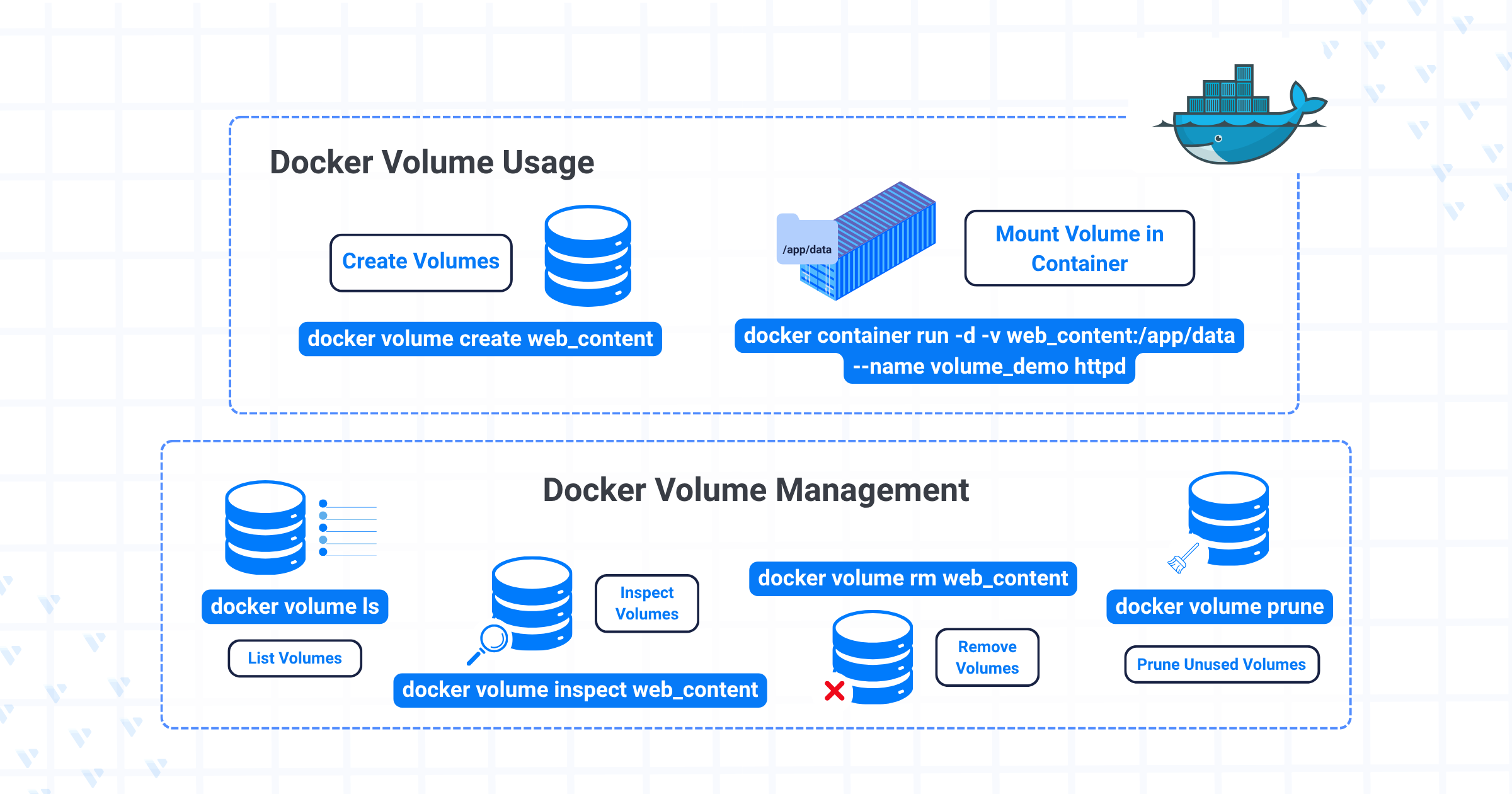
The following commands demonstrate how to manage persistent data using volumes:
docker volume create web_content
docker container run -d -v web_content:/app/data --name volume_demo httpd
docker volume ls
docker volume inspect web_content
docker volume rm web_content
docker volume prune
When to Use Docker Volumes
Use Docker volumes instead of bind mounts when:
- You want data to persist across container restarts or removals.
- You need consistent storage behavior across Linux, macOS, and Windows.
- You prefer Docker-managed storage lifecycle and internal volume handling.
- You plan to back up or restore application data regularly.
- You need to share persistent data between multiple containers.
Bind mounts are more suitable for development environments where code changes on the host need to reflect immediately in the container. For production environments, Docker volumes are the preferred choice due to their portability, safety, and lifecycle integration.
Manually Create and Link Volumes
1. Create a Docker volume:
docker volume create web_content
This creates a Docker-managed volume named web_content. Docker stores it internally and tracks its metadata.
Output:
web_content
2. Run a container and mount the volume:
docker container run -d -v web_content:/usr/local/apache2/htdocs --name apache_with_volume httpd
This launches a container with the httpd image and mounts the named volume at the web server's root. -d runs the container in detached mode, -v web_content:/usr/local/apache2/htdocs mounts the volume to Apache's web root, and --name apache_with_volume assigns the container a custom name.
Output:
03d0120e51dd822148d4c4c0464473cdad8a916e22ba5685ec495e47573dc722
3. List all volumes:
docker volume ls
Output:
DRIVER    VOLUME NAME
local     web_content
4. Inspect the volume:
docker volume inspect web_content
This confirms the volume's internal mount path and attributes, useful for debugging and manual access.
Output:
[
   {
       "CreatedAt": "2025-06-06T17:38:52Z",
       "Driver": "local",
       "Labels": null,
       "Mountpoint": "/var/lib/docker/volumes/web_content/_data",
       "Name": "web_content",
       "Options": null,
       "Scope": "local"
   }
]
5. List all containers:
docker container ls -a
Output:
CONTAINER ID   IMAGE     COMMAND              CREATED          STATUS          PORTS     NAMES
03d0120e51dd   httpd     "httpd-foreground"   46 seconds ago   Up 45 seconds   80/tcp    apache_with_volume
6. Check volume usage by container:
docker container inspect --format={{.Mounts}} apache_with_volume
This shows where the volume is mounted inside the container, validating its usage path.
Output:
[{volume web_content /var/lib/docker/volumes/web_content/_data /usr/local/apache2/htdocs local z true }]
7. Stop the container:
docker container stop apache_with_volume
This halts the container without removing it, preserving the volume and data.
Output:
apache_with_volume
8. Remove the container:
docker container rm apache_with_volume
This removes the container while leaving the named volume intact for reuse.
Output:
apache_with_volume
9. Remove the volume:
docker volume rm web_content
This permanently removes the volume and its contents.
Output:
web_content
Warning: Removing a volume deletes all stored data. Ensure backups exist before running this command in production environments.
Use Volumes in Dockerfiles
While Dockerfiles can't create named volumes, they can define mount points expected at runtime using the VOLUME instruction. Docker automatically creates an anonymous volume for such paths unless you explicitly mount a named one when running the container.
1. Navigate to the user's home directory and create a docker directory:
cd ~
mkdir docker
2. Navigate into the new directory:
cd docker/
3. Create a Dockerfile:
nano Dockerfile
4. Add the following content to the Dockerfile:
FROM httpd
VOLUME ["/usr/local/apache2/htdocs"]
CMD ["httpd-foreground"]
Save and close the file. This Dockerfile builds an Apache-based image that treats /usr/local/apache2/htdocs as a volume path.
5. Build the image:
docker image build -t apache_with_volume .
This builds the Dockerfile and creates a new image named apache_with_volume.
Output:
[+] Building 0.1s (5/5) FINISHED                            docker:default
 => [internal] load build definition from Dockerfile        0.0s
 => => transferring dockerfile: 110B                        0.0s
 => [internal] load metadata for docker.io/library/httpd    0.0s
 => => writing image sha256:c886f948f696b...                0.0s
 => => naming to docker.io/library/apache_with_volume       0.0s
6. Run the container:
docker container run -d --rm apache_with_volume
-d runs the container in detached mode, and --rm automatically removes the container when it exits. Docker automatically creates an anonymous volume and mounts it at /usr/local/apache2/htdocs, as defined in the Dockerfile.
To use a named volume instead of an anonymous one, pass the -v flag explicitly:
docker container run -d --rm -v web_content:/usr/local/apache2/htdocs apache_with_volume
This lets you control the volume lifecycle while still benefiting from Dockerfile-defined mount points.
Interact with Docker Volumes
Docker does not let you directly mount volumes on the host system, but you can access and modify volume contents from within a running container.
1. Start a container with the volume mounted:
docker container run -d --name apache_with_volume -v web_content:/usr/local/apache2/htdocs httpd
Output:
03d0120e51dd8221...
2. Create an HTML file on your host machine:
echo "<h1>Hello Apache from docker volume</h1>" > index.html
3. Copy the file into the container:
docker cp index.html apache_with_volume:/usr/local/apache2/htdocs/
Output:
Successfully copied 2.05kB to apache_with_volume:/usr/local/apache2/htdocs/
4. View the file contents inside the container:
docker exec apache_with_volume \
   cat /usr/local/apache2/htdocs/index.html
Output:
<h1>Hello Apache from docker volume</h1>
5. Back up the volume from inside the container:
docker exec apache_with_volume \
   tar czf /usr/local/apache2/htdocs/httpd_backup.tar.gz -C /usr/local/apache2/htdocs .
This creates a compressed .tar.gz archive of the volume's contents inside the container.
6. Copy the backup file from the container to the host:
docker cp apache_with_volume:/usr/local/apache2/htdocs/httpd_backup.tar.gz .
Output:
Successfully copied 2.05kB to /home/john/docker/.
7. Restore the volume by copying the archive back and extracting it:
docker cp httpd_backup.tar.gz apache_with_volume:/usr/local/apache2/htdocs/
docker exec apache_with_volume \
   tar xzf /usr/local/apache2/htdocs/httpd_backup.tar.gz -C /usr/local/apache2/htdocs
The first command copies the backup archive into the container, and the second extracts its contents into the volume directory.
Use Volumes with Docker Compose
Docker Compose supports named volumes natively — they're automatically created and managed alongside the service lifecycle.
1. Create a docker-compose directory in your home path:
cd ~
mkdir docker-compose
2. Navigate to the new directory:
cd docker-compose/
3. Create a docker-compose.yml manifest:
nano docker-compose.yml
4. Add the following YAML content to the file:
services:
   web:
       image: httpd
       volumes:
           - web_content:/usr/local/apache2/htdocs

volumes:
   web_content:
This tells Docker Compose to create a volume named web_content and mount it to the container at /usr/local/apache2/htdocs.
5. Start the service:
docker compose up -d
This builds and runs the container while automatically creating the declared volume and network.
Output:
[+] Running 3/3
✔ Network docker-compose_default       Created                    0.2s
✔ Volume "docker-compose_web_content"  Created                    0.0s
✔ Container docker-compose-web-1       Started                    0.6s
6. Inspect the volume created by Docker Compose:
docker volume inspect docker-compose_web_content
Replace docker-compose_web_content with the name of your Docker Compose volume. This confirms that the named volume declared in the Compose file was created and is mounted as expected.
Output:
[
    {
        "Name": "docker-compose_web_content",
        "Mountpoint": "/var/lib/docker/volumes/docker-compose_web_content/_data",
        ...
    }
]
7. Shut down the service and remove the volume:
docker compose down -v
down stops and removes containers, networks, and volumes, and -v ensures that named volumes declared in the Compose file are also deleted.
Output:
[+] Running 3/3
✔ Container docker-compose-web-1     Removed                      1.3s
✔ Network docker-compose_default     Removed                      0.2s
✔ Volume docker-compose_web_content  Removed                      0.0s
Next Steps
- Move your own stateful services (databases, CMS uploads, app data) from bind mounts to named volumes for safer, more portable persistence.
- Script the backup/restore workflow (
tarinside the container +docker cp) into a reusable shell script you can run on a schedule. - Add volume definitions to an existing Docker Compose project instead of managing volumes manually with the CLI.
- Review
docker volume pruneto clean up unused volumes once you're comfortable with which ones are safe to remove.
For the full guide with additional tips, visit the original article on Vultr Docs.
About the authors
- A Developer Advocate with a focus on improving the developer experience through clear communication, technical enablement, and community engagement.
- DevOps Engineer with experience in Kubernetes, automation, cloud infrastructure, and observability. I work in Developer Relations, contribute to technical documentation, and collaborate on engineering-focused projects.
Comments
Join the discussionNo comments yet. Be the first to comment.